
Harmony: In-gen's AI agent
Harmony builds and changes your game from plain-language requests, inside the editor, with the AI service you already use. This page explains how it works, what it can drive, and how to get good results for less.
What Harmony is
Harmony is the agent panel on the right of the In-gen editor. You describe what you want, and Harmony works directly in your open project: it places objects, sculpts terrain, writes gameplay code, builds models, lights the scene, writes cutscenes and plays the game to check its work. It acts through the same editor actions you use by hand, so everything it makes shows up in the editor and stays editable.
Harmony is not a model. It is the workspace around one: the tools, the project rules, the approval flow and the history. The intelligence comes from the AI service you connect, and you can switch services in the middle of a task without losing the conversation, because the conversation belongs to the editor rather than to any one provider.
Bring your own AI
In-gen does not sell AI access. You connect an account you already have, either during first-run setup or later from Agent > Set Up Agents…. The model menu at the top of the Harmony panel then lists every connected provider and its models.
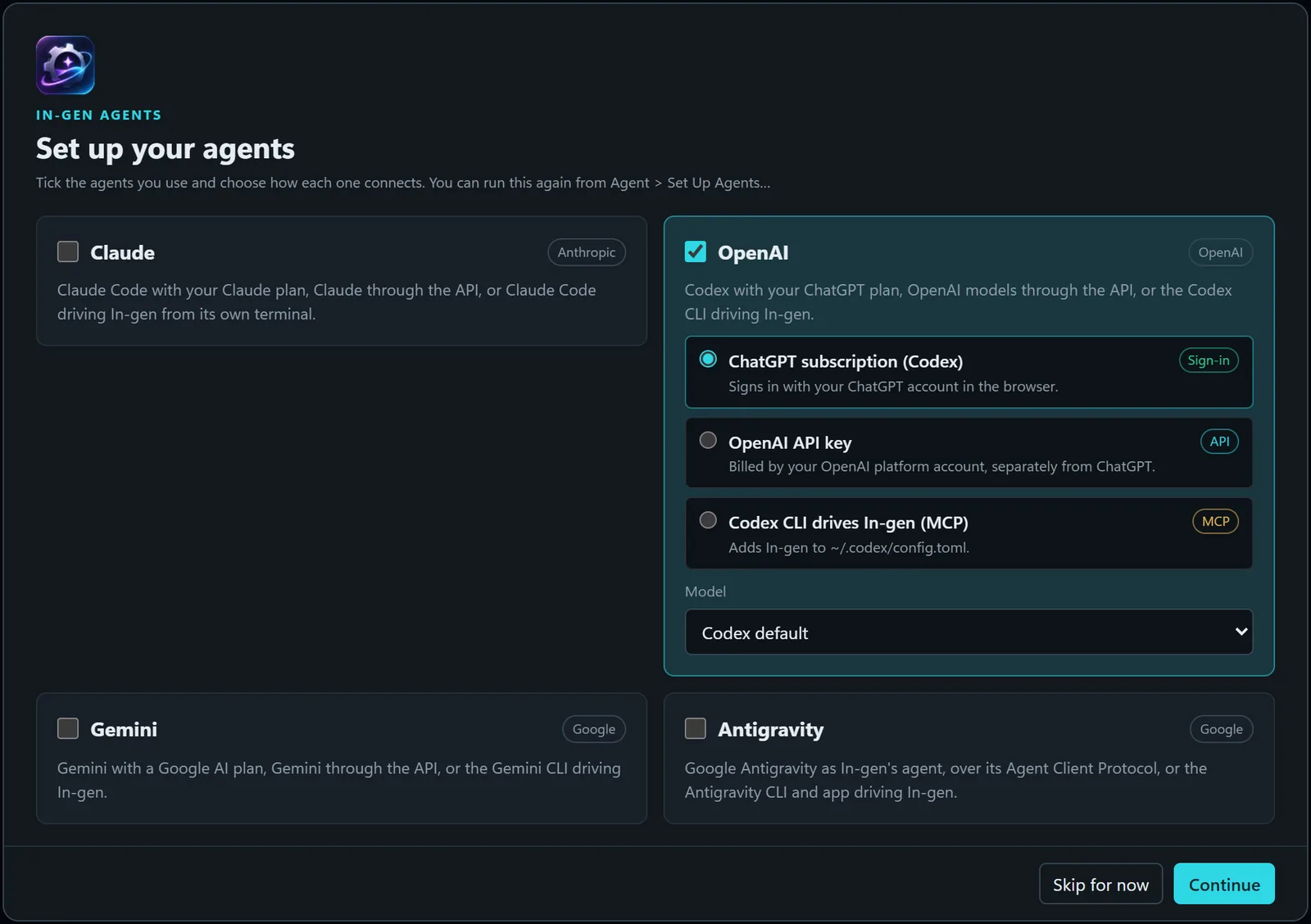
- Claude (subscription) signs in through Claude Code with a Claude Pro or Max plan. No API key is needed.
- Anthropic (API key) uses Claude models through Anthropic's API, billed per token.
- Codex (ChatGPT subscription) signs in with your ChatGPT account in the browser.
- OpenAI API (API key) uses an OpenAI platform key, billed separately from ChatGPT.
- Gemini Code Assist uses your Google AI plan through the Antigravity runtime that ships with In-gen. It works one tool step at a time.
- Google Gemini (API key) uses a key from Google AI Studio or Google Cloud.
- Antigravity (Google sign-in) runs Google's Antigravity agent inside In-gen with In-gen's tools, on your Antigravity plan.
- Custom (OpenAI-compatible), new in beta 34, points Harmony at any server that speaks the Chat Completions format. See below.
The difference between the two kinds matters for cost. A subscription spends your plan's usage allowance. For Claude, Codex and Antigravity, the vendor's own agent runs the task, and every tool call it makes still passes through In-gen. With an API key, In-gen runs the loop itself and the provider bills each token. The Effort menu beside the model menu sets how hard Claude, Codex or Gemini thinks on a task, from fastest to deepest; Default keeps the provider's normal behaviour.
How a request flows
- You ask. Type the request and press Enter. Attach the selected object, the viewport center, a picture of the current view, or your own reference images, so Harmony knows exactly what you mean.
- Harmony reads and plans. It reads the parts of the project the request touches: the scene, the relevant Systems and files. A small change goes straight to work. A large job, such as a whole game, gets a written plan in
Design/first, and Harmony starts step 1 only after you approve it. An open plan stays at the top of the panel with its progress and a Continue button, so the work can carry on in a later session. - Harmony acts. It makes changes through editor actions and project files. A task card above the conversation shows what it was asked, what it is doing now, and Pause and Stop. You can type while it works; it reads your message at its next step. For big jobs, Claude can hand independent parts, such as one model or one gameplay module, to up to three helper agents that use the same tools and approvals.
- Harmony checks. It can play the game, run scripted tests that step the game and check values, read the events a play session produced, and look at rendered frames. Edits you make in the editor during a task are reported to it as yours, and it does not undo them.
- Harmony reports. The final message says what changed, how it was tested, and what was not tested.
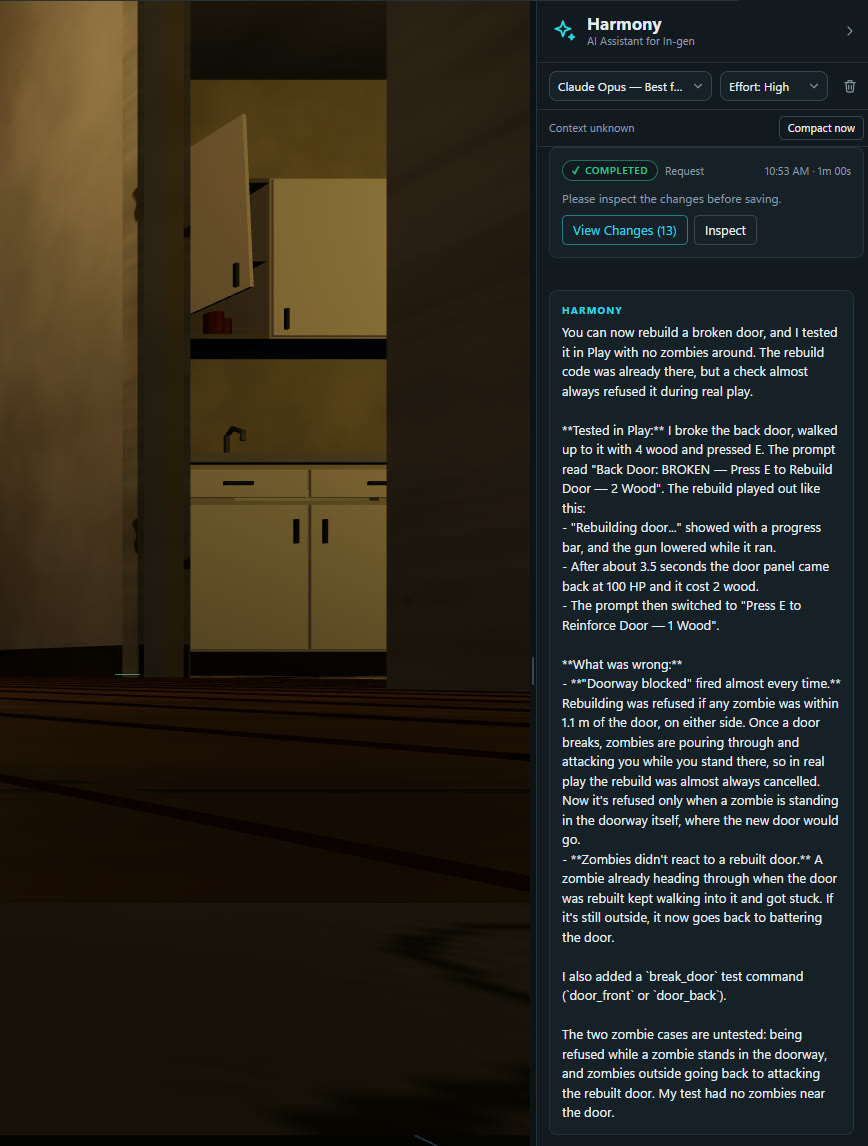
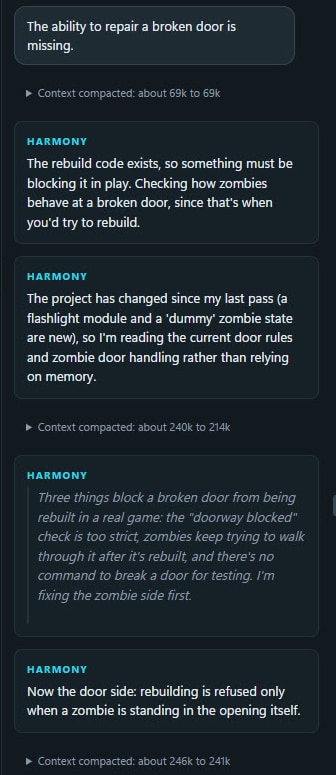
Long tasks fill the model's context. With Compact context automatically on (the default), Harmony summarizes older context and keeps going, and the conversation shows a "Context compacted" line each time. Compact now does it on demand, and the meter beside it shows how full the context is when the provider reports it.
Approvals, review and undo
A finished task asks you to look before you save. Its card shows the outcome and the controls for reviewing it:
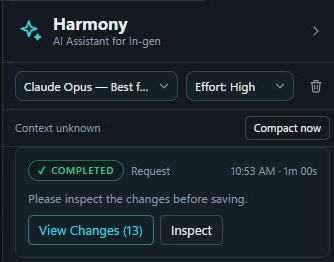
- View Changes lists each change the task made, built from what the editor actually did.
- Inspect shows the task's details.
- Revert puts the task back. It appears for the 8 most recent tasks while In-gen still holds their checkpoint (restarting the editor or reloading the preview drops it), and it stops, rather than overwrite, if you changed the same thing since.
Batched edits count as one undo step. When Harmony places twenty trees in one go, one undo removes all twenty.
Approval cards let you approve each action before it runs. They are off by default: the setting Approve all agent actions starts on, and every action is logged in the chat as it happens. To turn cards on, open Settings > API Keys and untick that setting at the top of the panel. From then on, actions that change files, run a command or spend credits wait for you. Each card shows the action, the task it belongs to, how many lines it adds and removes, and a line-by-line diff or the exact command. You can Approve it, Always allow this tool for the rest of the session, Approve all (which turns the setting back on), or Deny it. A Meshy generation card also shows your balance and the most credits the call can cost.
Systems and Sheets
Game rules buried in code are hard to change. You have to find the number, understand the code around it, and ask the agent again for every tweak. In-gen avoids that by giving every rule a home you can see.
A System is one mechanic, such as the player controller, a shop or a coin pickup. Each System has:
- a plain-language description (
systems/<id>.md) that says what it does and how to tune it; - the Sheets it owns, which are spreadsheet tables in the project workbook;
- its code in
gameplay/and its tests ingameplay/tests/; - a status, Not implemented or Implemented, and any open issues.
Sheet columns are typed. A number column can have a minimum, a maximum and units. There are also picker types (an asset, an animation, a choice from a list, a row of another sheet) and structured types: lists of rows with quantities or weights, curves, 3D vectors and colours. When you Play, a value that does not fit its column, or a reference to something missing, is refused with a message naming the sheet, row and column. A column for design notes can be marked editor-only, so release builds leave it out.
Sheets hold the defaults. When one placed object needs its own value, such as a single locked chest, its sheet can expose that column, and you set the value on that object alone. The object keeps only what it overrides, so later changes to the row still reach it.
You can work on Systems without Harmony too. The + button in the Systems list creates one, Import brings in an Excel workbook, and a System's page offers Send to Harmony to have Harmony implement what you described, Copy prompt for another agent, and Mark implemented. When you edit a sheet and save it, Harmony is told on its next request that you made the change, so it builds on your values instead of reverting them.
Worked example: a coin pickup
Suppose you ask: "Add coins the player can pick up. Each gives 5 gold and comes back after 30 seconds." Harmony does not hard-code 5 and 30. It sets up:
- a Coin Pickup System that owns
gameplay/coin_pickup.mjs, its test, and a Coins sheet; - a Coins sheet with the columns
id,Asset(an asset picker),Gold(a number, minimum 0) andRespawn(a number in seconds), and a rowcoinset to the coin model, 5 and 30; - a description that says what the System does and which columns tune it;
- coin spots placed as markers in the scene, so you can move them in the editor.
It finishes by naming exactly what to edit, for example: "Edit Systems > Coin Pickup, sheet Coins, column Gold."
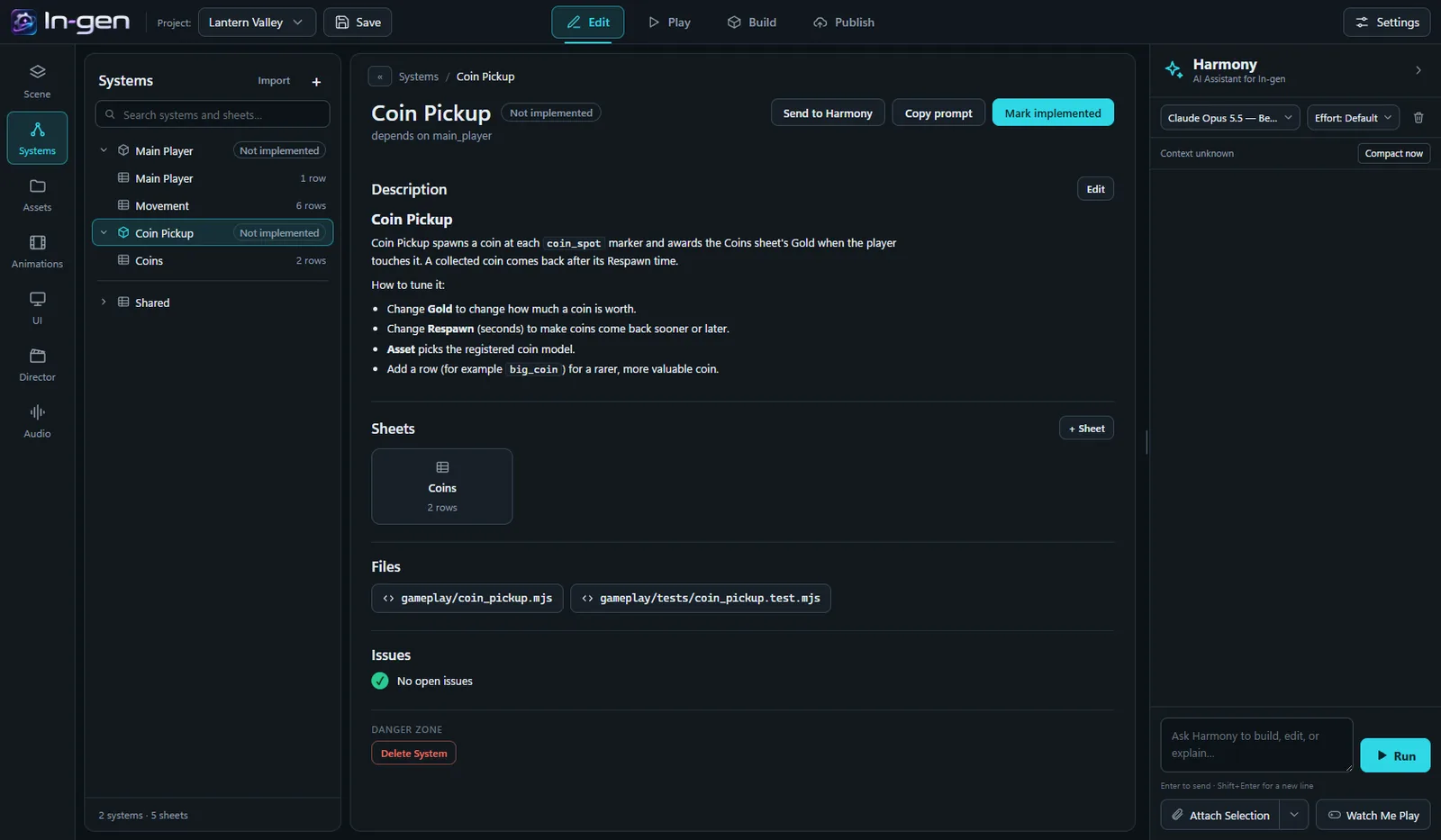
From then on, making coins worth 10 is a one-cell edit: open the Coins sheet, change Gold, save, and play. No prompt, no tokens. Adding a big_coin row worth 25 is a data change too, as long as the System reads every row. If it needs new code, Save & Implement sends just the edited rows to Harmony.
Some requests do not need a System: a one-off test, a pure scene or asset edit, or logic with nothing to tune. Harmony records the exception and the reason instead.
Harmony Intent
Most of an agent's cost is not the code it writes. It is the context it re-reads on every step, and the number of steps it takes. Harmony Intent is the compact language Harmony uses to cut both:
- Reading: Harmony reads a scene as one short line per object, light and marker. That is about 3.8 times fewer tokens than the scene's JSON.
- Writing: a whole batch of edits goes in as one step, with one approval and one undo, instead of one tool call per object. A line such as
add oak_a @12,4 ry=1.2 s=1.05places a tree with its rotation and scale, and one batch can hold dozens of them.
We measured it on a scene-editing benchmark of 7 tasks, each run twice:
| Measure | Before | With Harmony Intent |
|---|---|---|
| Tokens per task (average) | about 89,000 | about 34,000 (about 60% less) |
| Tool calls per task | 12.9 | 4.7 |
| Successful runs | 11 of 14 | 14 of 14 |
| Placing 34 trees | 235,000 tokens | 44,000 tokens |
That is a small benchmark, so treat the exact numbers with care: your savings depend on the model and the task. The direction was consistent across the runs, though.
The same idea applies to 3D models. Harmony writes a short Intent plan and Kiln builds it, instead of Harmony writing Kiln's JavaScript by hand. In two head-to-head tests, plans cost 13% and 32% less.
The tools Harmony drives
Harmony uses real tools on your computer, which In-gen sets up for you. Most of them are local and cost nothing beyond your AI usage.
- Kiln models. Kiln ships inside In-gen. Harmony writes a Harmony Intent model plan (the 3genjs plan language), and Kiln builds it locally into a game-ready GLB with a review image, with no credits spent. Props, furniture, building pieces, creatures and characters all start this way. The plan stays in the project next to its model, so changing the plan and rebuilding changes the model.
- Blender. A private copy of Blender (the official portable 4.5 LTS, about 380 MB, installed from Settings > Tools) or your own install, run in the background without its interface. Harmony cannot hand Blender a script. It can only call a fixed list of vetted operations, such as remeshing, decimating, booleans, UV unwrapping, texture baking and rigging a character with the standard skeleton so every library animation plays on it. Looking and rendering are read-only; any operation that writes a model is its own action.
- Create Tree. Grows a procedural tree in seconds, in plain JavaScript with no Blender. Each tree comes with four levels of detail down to a flat impostor card, and sways in the scene's wind. Species include oak, birch, pine and a heavier showpiece oak, and a forest is a few variants placed many times, so built games can draw them as instances.
- Textures and materials. Harmony can make stylized tiling textures in seconds at no cost, such as wallpaper, wood floor, brick, grass and stone, plus decals and effect sprites. For realism,
generate_materialturns a surface photo into a tiling PBR material. A photo already in your project is free; drawing one from a prompt uses GPT Image 2.5 and needs an OpenAI API key, billed by OpenAI. - Sound. Stable Audio 3 generates sound effects and music on your computer, at no cost. Install it from Settings > Tools, then use it from the Audio section or ask Harmony.
- Meshy (optional). With your own Meshy API key, Harmony can generate models with Meshy. That spends real Meshy credits, so In-gen asks before every generation, enforces the cost cap shown on the card, and cannot cancel a generation once Meshy has started it. Results wait in
meshy-staging/until they are accepted into the project.
CineGen Director and Harmony Flow
Harmony Intent describes what is in a scene; Harmony Flow describes how it is filmed over time. A cutscene is a cut file in cinematics/, and Harmony Flow is its text: beats, cast, shots, camera moves, staging, lights, fades, sound cues and on-screen text. Harmony writes a cut in one step, and every line is checked first. A mistake comes back as the line number, an error code and a likely fix, and nothing is written until the whole cut checks.
You can also write and edit cuts yourself in the Director section, scrub the timeline, and use Grab camera to turn the current view into a shot. The same cut plays as an in-game cutscene or renders frame by frame to video, so the video has no dropped frames, and renders can mix in your own music and sound effects. The 60-second short From Idea to Asset on the In-gen home page was made this way.
External agents over MCP
If you already work in Claude Code or Codex, you can drive In-gen from there instead of from the Harmony panel. In-gen runs a local MCP server that those agents connect to.
- Open Agent > External Agent (MCP)… and tick Enable external agents. Turning it on also registers In-gen with Claude Code and Codex.
- If registration fails, or you use Antigravity or the Gemini CLI, copy the command for your agent from the same window and run it in a terminal.
- Keep In-gen open with the project you want changed, then start (or restart) your agent session.
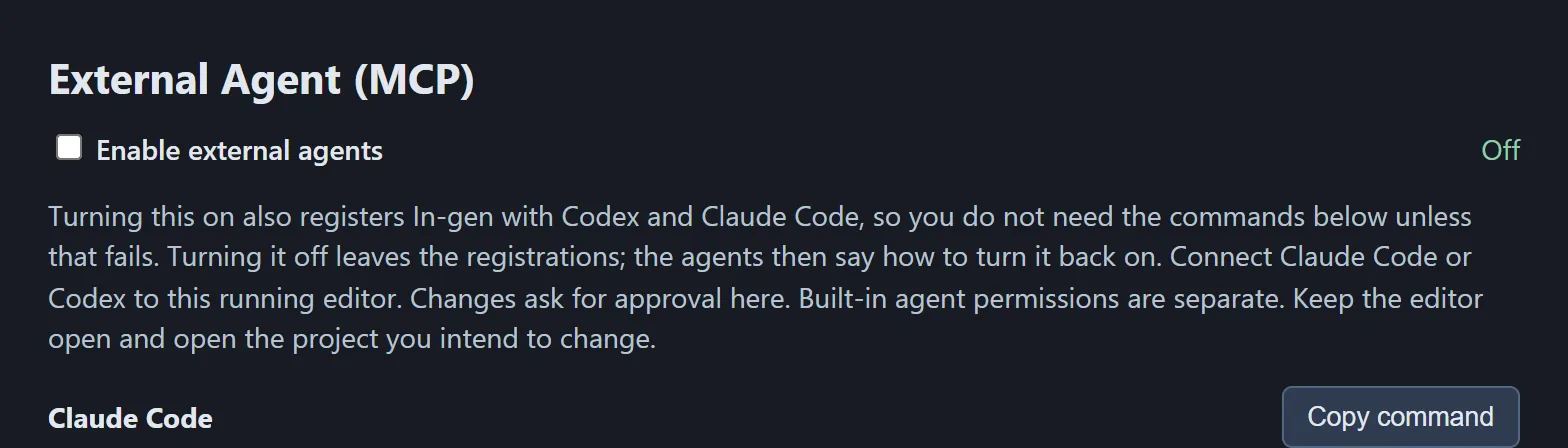
An outside agent's changes go through In-gen's approval path. With Approve all agent actions turned off, each one appears as a card in the editor marked External agent (MCP), and a card left unanswered expires after ten minutes without running. Outside agents keep their own Always allow grants, separate from Harmony's, and only one agent can change the project at a time. You can also choose an agent's MCP option during first-run setup.
Custom OpenAI-compatible endpoint
Beta 34 added Custom (OpenAI-compatible), for local models and gateways: Ollama, LM Studio, vLLM, OpenRouter, or a company server.
- Choose Custom (OpenAI-compatible) in the model menu.
- Open Settings > API Keys and fill in the Base URL (for Ollama, usually
http://localhost:11434/v1) and the Model name exactly as the server knows it. - Press Test connection. It sends one tiny request with no tools and reports which model answered.
- Press Save endpoint. Add an API key only if the server needs one.
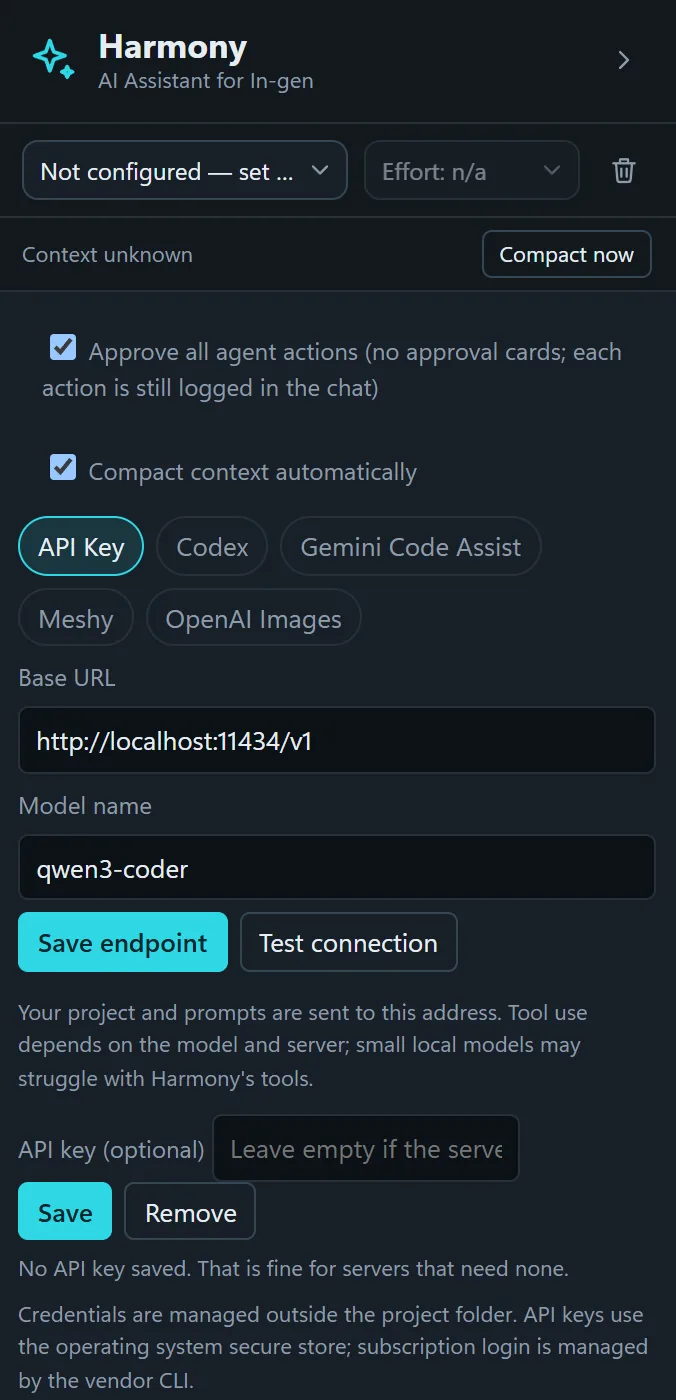
Things to know before you rely on it:
- Your project goes to that address. Prompts, and whatever project text Harmony reads, are sent to the server you enter. A local server keeps them on your machine; a hosted one is under its own terms.
- Plain
http://works only for your own machine (localhost,127.0.0.1or::1). Any other address must usehttps://. Put a key in the key field, never in the URL. - Tool use depends on the model. Harmony works by calling tools, and small local models may struggle with them. If requests stall or tool calls fail, try a larger model.
- No effort setting. The Effort menu reads n/a for this provider.
- The key is optional, stored in Windows' secure store like other keys, and never written to the settings file or to error messages.
Tips for cost and good results
- Be concrete. Name the object, the place and the numbers. "Put three benches facing the pond, 2 m apart" beats "add some seating".
- Point instead of describing. Select the object and use Attach Selection, or attach the current view.
- Ask for tunable rules. Say which values you expect to tweak. Then tune them in Sheets rather than with new prompts.
- Plan big jobs. For a whole level or game, ask for a plan first. You can correct it before any work starts, and it survives across sessions.
- Match the model to the job. A faster model or lower effort is fine for small edits; save the most capable settings for design and debugging.
- Show Harmony the bug. Use Watch Me Play, press F8 at the moment it goes wrong, then Ask Harmony. Events and state are cheaper to read than screenshots.
- Prefer the free local tools. Kiln, Create Tree, the texture generator and Stable Audio 3 cost nothing; Meshy and prompt-drawn materials spend money.
- Start fresh for a new topic. A long conversation carries its context into every step. Agent > Clear Conversation starts over.
- Read the report. Harmony says what it tested and what it did not. Play the untested cases yourself.
Privacy: what is sent where
- Gen Gaming receives nothing from the app. Your projects, prompts, files, keys and chat history are not sent to us, and In-gen sends no analytics or usage reports.
- Requests go straight to the provider you chose, under your own account, plan or key. Depending on the request, that can include your prompt and the conversation, text from scene and project files Harmony reads, screenshots, and images you attach. That provider's terms and privacy policy apply. When Harmony runs Claude, it identifies itself to Anthropic as the application "in-gen".
- Keys stay on your PC. API keys are encrypted with Windows' credential protection, kept outside your project folder, and cannot be read back by the editor's interface or the game preview. Subscription sign-ins are held by the vendor's own tool.
- Harmony stays in the project. Its file access is limited to the open project folder.
- Your history is local. Conversations are saved on your computer, per project, and are not encrypted. Agent > Clear Conversation deletes the current one.
- Optional services see only what they need. A Meshy request carries only what its approval card showed: the prompt, any reference image and the settings.
The privacy policy has the full details, including update checks and website data.