
Getting Started with In-gen
This guide takes you from download to a game you can play and share: install In-gen, connect an AI, make a project, learn the editor, and build your first version.
What In-gen is
In-gen is a free game editor for Windows with an AI agent, Harmony, built in. You make 3D games in a full editor, with terrain, models, animation, sound, cutscenes and game rules, and you can ask Harmony to do any of that work in plain language. Harmony runs on the AI service you choose, and the rules it writes become Systems and Sheets you can read and change yourself. In-gen is in public beta and updates itself.
What your PC needs
- System
- Windows 10 or 11, 64-bit.
- Graphics
- A graphics card with WebGL2. In-gen uses WebGPU where the card supports it.
- Disk
- About 2 GB for In-gen. Blender, if you turn it on, downloads separately.
- AI
- For Harmony: a supported subscription or an API key for Claude, ChatGPT, Gemini or Antigravity, or a server that speaks the OpenAI Chat Completions format.
- Internet
- For the download, updates and your AI provider.
In-gen is not available for macOS or Linux yet. The games you build run on Windows or in a web browser.
Download and install
- Download the installer with the Download button on this site. It is one file,
In-gen-Setup-<version>.exe, served from In-gen's public release page on GitHub. No sign-up is needed. - Run it. If Windows SmartScreen says it protected your PC, choose More info, then Run anyway. The installer is not code-signed yet, so Windows does not recognize it.
- Accept the license agreement. The installer shows the In-gen license agreement once. You can read it again any time from Help > License Agreement.
- Choose whether to install for just you or for everyone on the PC, and where. In-gen adds a desktop and Start menu shortcut.
- Open In-gen. The first launch asks you to connect an AI, covered next.
Updates. In-gen checks for a new version about once a day and asks before it installs one. To check now, use Help > Check for Updates…. Each update's file list is signed and every installer is checked against it before it runs. Updates keep your projects and settings, show their progress, and reopen In-gen when they finish. The AI tools In-gen runs for you (Claude Code, Codex, Antigravity and Kiln) are checked the same way; Agent > Check for Tool Updates… checks them on demand.
Connect an AI
The first time you open In-gen, it shows Set up your agents. Tick each AI service you use, choose how it connects, pick a model, and press Continue. In-gen then runs each connection in turn: it opens the sign-in window for a subscription, checks an API key, or registers In-gen with an outside agent. You can press Skip for now and come back later from Agent > Set Up Agents….
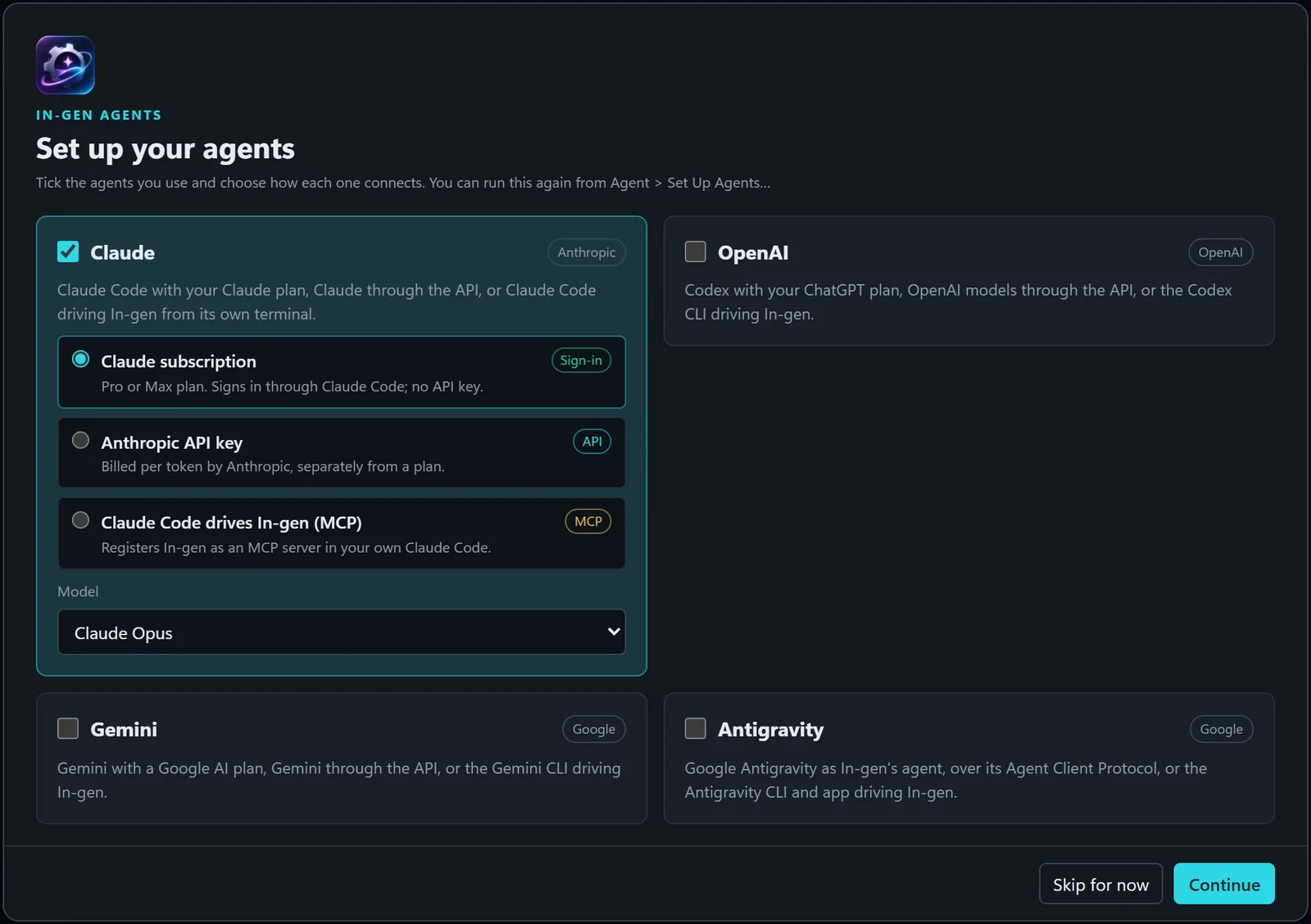
| Service | With a subscription | With an API key | Outside agent (MCP) |
|---|---|---|---|
| Claude | Claude Pro or Max plan. Signs in through Claude Code. | Anthropic API key | Claude Code |
| OpenAI | ChatGPT plan, through Codex. Signs in in your browser. | OpenAI API key | Codex CLI |
| Gemini | Google AI plan. Signs in with Google through the Antigravity runtime that ships with In-gen. | Gemini API key | Gemini CLI |
| Antigravity | Your Google account's Antigravity plan. Runs Antigravity as Harmony's agent. | None | Antigravity |
A subscription uses the allowance of the plan you already pay for. An API key is billed per use by that company, separately from any plan, so a ChatGPT subscription does not cover OpenAI API calls. When you enter a key, In-gen checks it with a free, read-only request before saving it, and stores it with Windows' credential protection. Sign-ins are handled by the vendor's own tool, so In-gen never sees your password.
You can change your choice at any time. The menu at the top of the Harmony panel lists every connected service and model, and the Effort menu beside it sets how hard the model thinks. If you run your own model server, see the custom endpoint section of the Harmony docs.
Optional local tools. Settings > Tools lists the tools that run on your computer. Blender powers mesh repair and character rigging; In-gen can install the official portable Blender 4.5 LTS (about 380 MB) or use a copy you already have. Stable Audio 3 generates sound effects and music locally and is optional. Kiln, which builds 3D models from plans, is included and needs no account.
Create or open a project
- Choose File > New Project… (Ctrl+N), or the New project… button that shows when nothing is open.
- Pick an empty folder. Its name becomes the project's name.
- In-gen creates the project and opens it. A new project already has one scene and a third-person player you can walk around with.
To open an existing project, use File > Open Project… and choose its .ingen file, or double-click that file in Explorer. Older projects without a .ingen file open with File > Open Project Folder…. In-gen reopens your last project when it starts, and File > Recent Projects lists the others.
A project is an ordinary folder of files you can back up or keep in version control:
<Name>.ingenis the project file, andgame.jsonlists the scenes and which one opens first.scenes/holds one file per map: placed objects, terrain, lights and markers.config/data.jsonis the workbook, which holds every Sheet.config/assets.jsonregisters the models, andconfig/systems.jsonrecords which System owns which sheets and files.gameplay/holds each System's code and its tests, andsystems/holds each System's plain-language description.models/,audio/andcinematics/hold models, sounds and cutscenes.meshy-staging/holds generated models waiting for you to accept them.Design/appears when Harmony writes a plan for a large job.
A tour of the editor
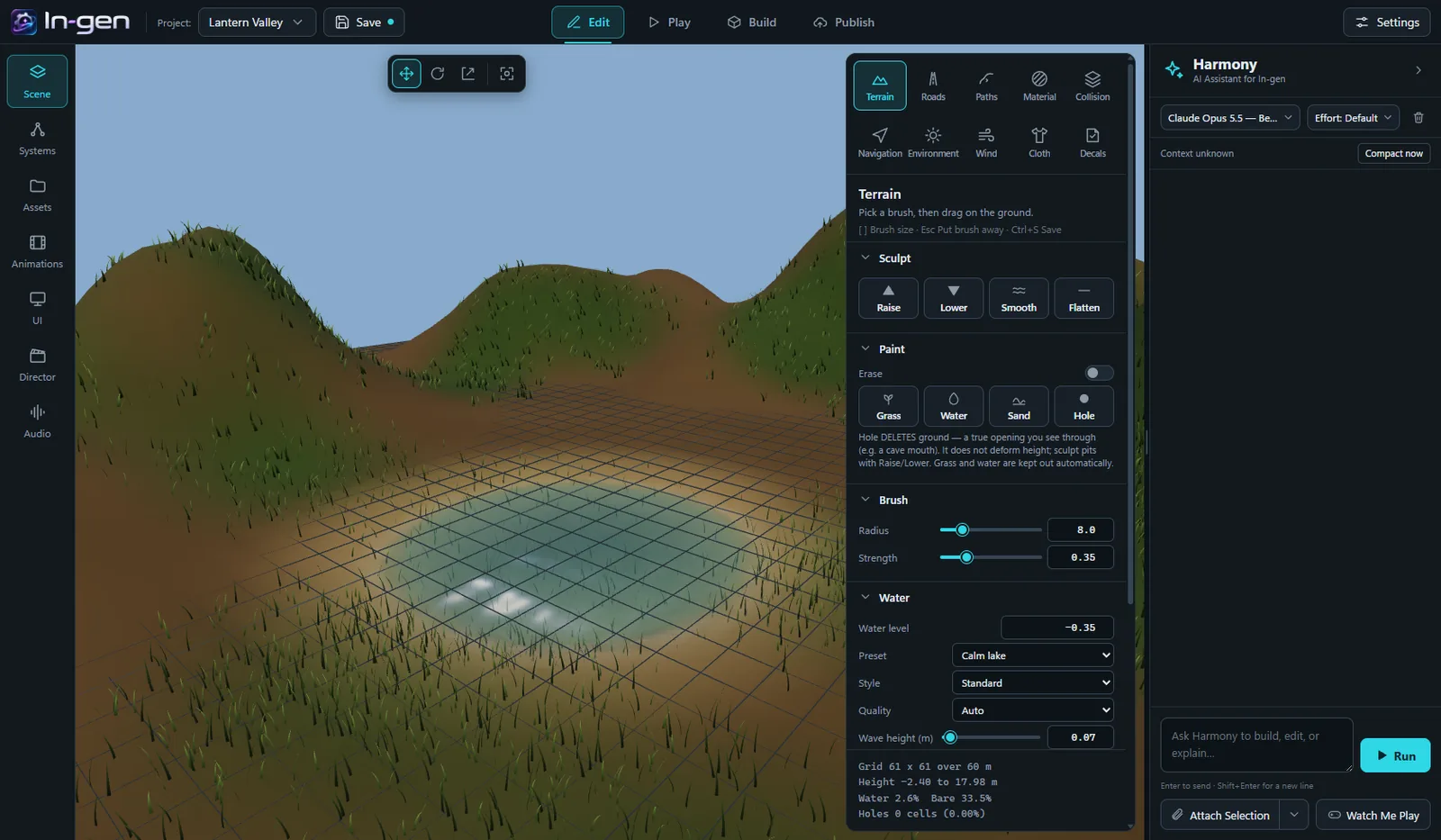
The screenshot at the top of this page shows the layout. Across the top are the project menu, Save, the four modes (Edit, Play, Build and Publish) and Settings. The rail on the left switches between sections, and Harmony sits on the right. Drag the divider to resize Harmony, or hide it with the arrow in its header.
Viewport and Scene
The viewport is your 3D scene. Click an object to select it, then use the toolbar above the viewport to Move (W), Rotate (E), Scale (R) or Frame selection (F). The Scene section opens the tool panel, with tabs for Terrain, Roads, Paths, Material, Collision, Navigation, Environment, Wind, Cloth and Decals.
Terrain
Pick a brush and drag on the ground. Raise, Lower, Smooth and Flatten sculpt the land; Grass, Water and Sand paint it. Hole deletes ground to make a real opening, such as a cave mouth. Change the brush size with [ and ], put the brush away with Esc, and save with Ctrl+S. The Water settings below the brushes set the water level and its look.
Systems and Sheets
The Systems section lists your game's rules. Each System has a plain-language description, the Sheets it reads, its code files and any open issues. Click a Sheet to edit it like a spreadsheet. Tune a System yourself walks through it.
Assets and Animations
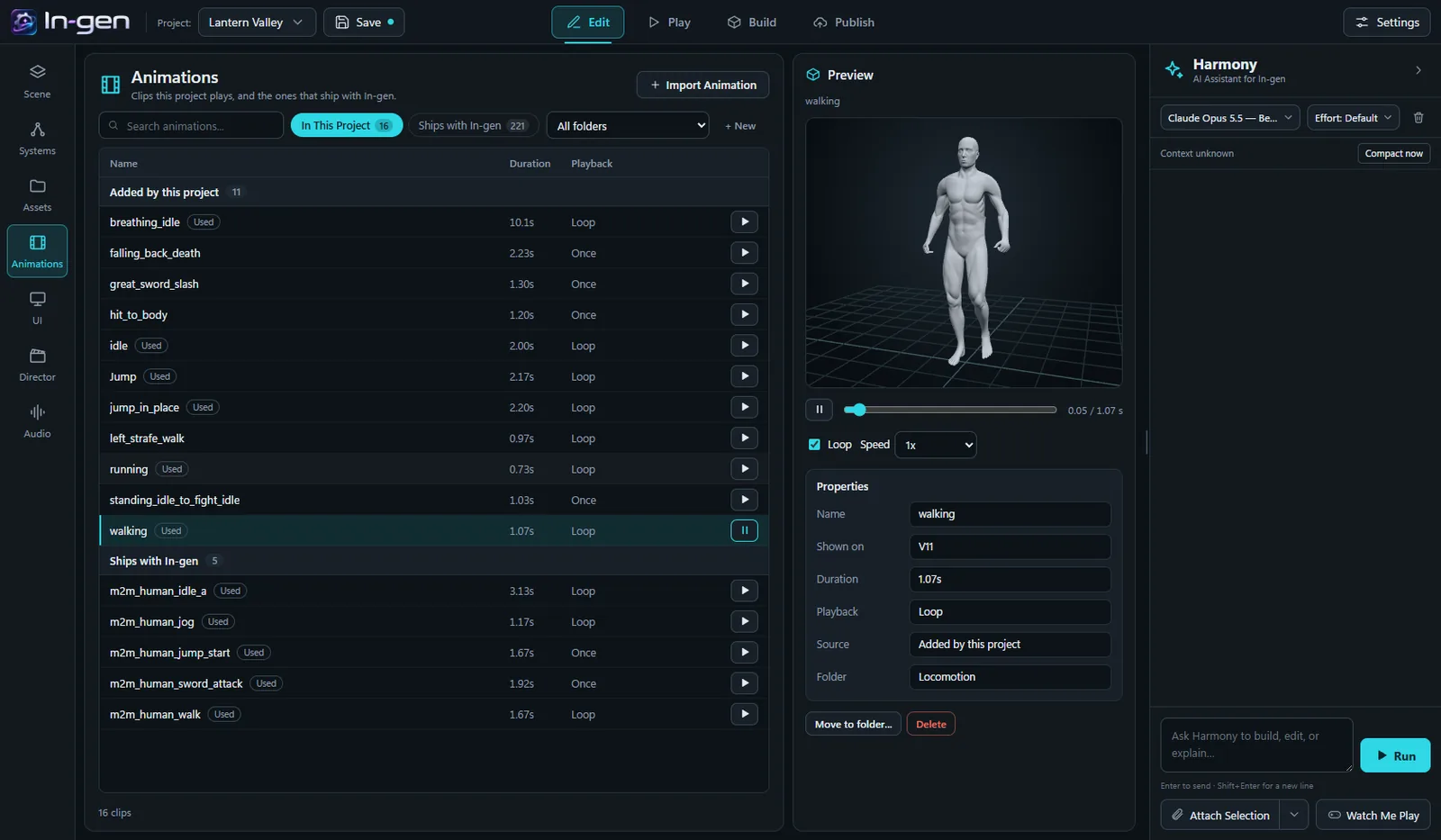
Assets lists the models in your project by folder. Import GLB brings a model in, Place adds it to the scene, Preview shows it, and Rig appears on characters. Animations lists the clips your project uses and the ones that ship with In-gen. Pick a clip to play it on your character, with loop and speed controls. Import Animation adds your own clips.
UI, Director and Audio
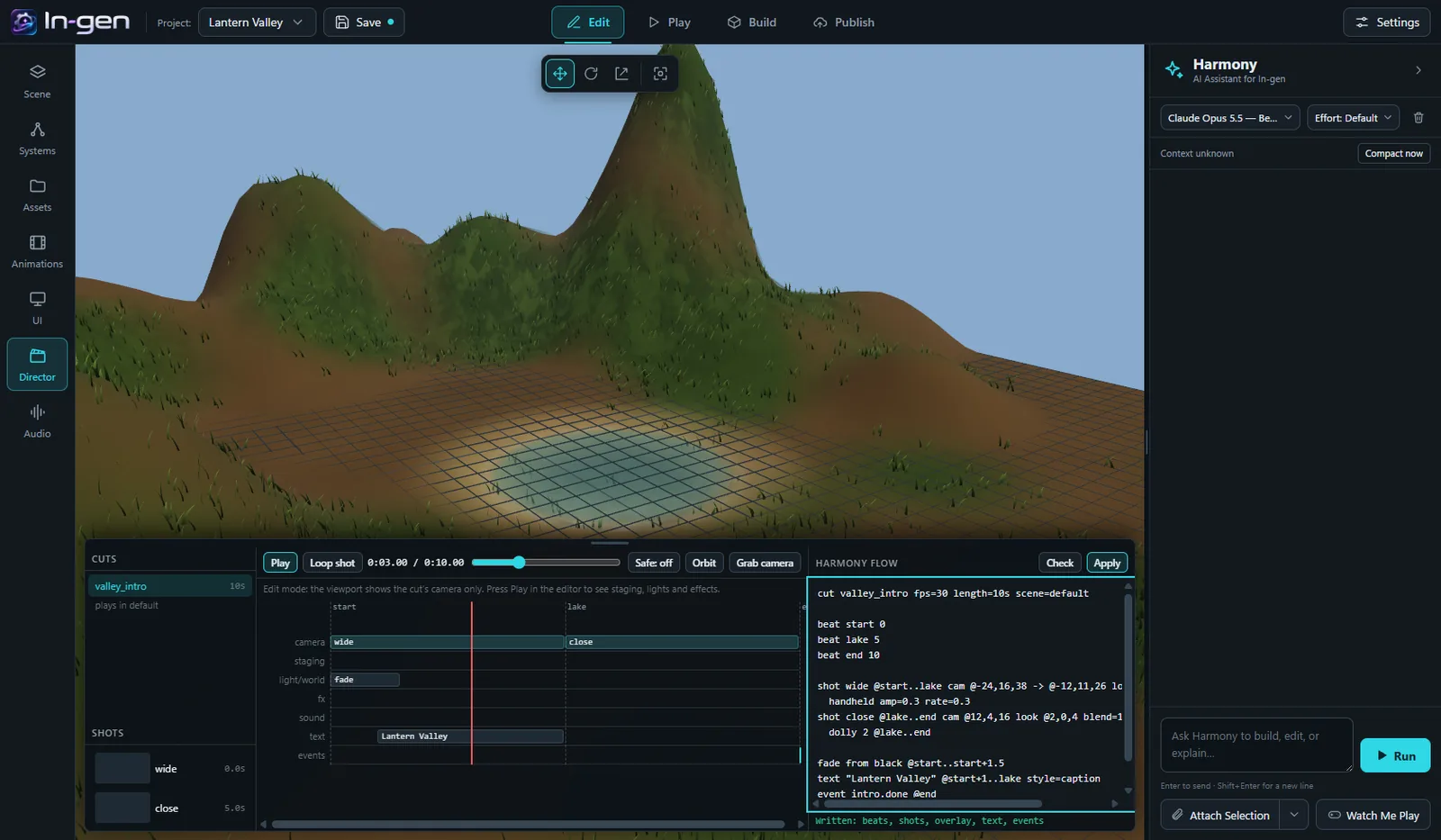
UI edits your game's own screens, such as the HUD and menus. Director is where cutscenes live: a list of cuts, a timeline you can scrub and play, and the cut's text in Harmony Flow, a plain directing language. Check finds mistakes before anything is written, Apply saves the cut, and Grab camera turns the current view into a shot.
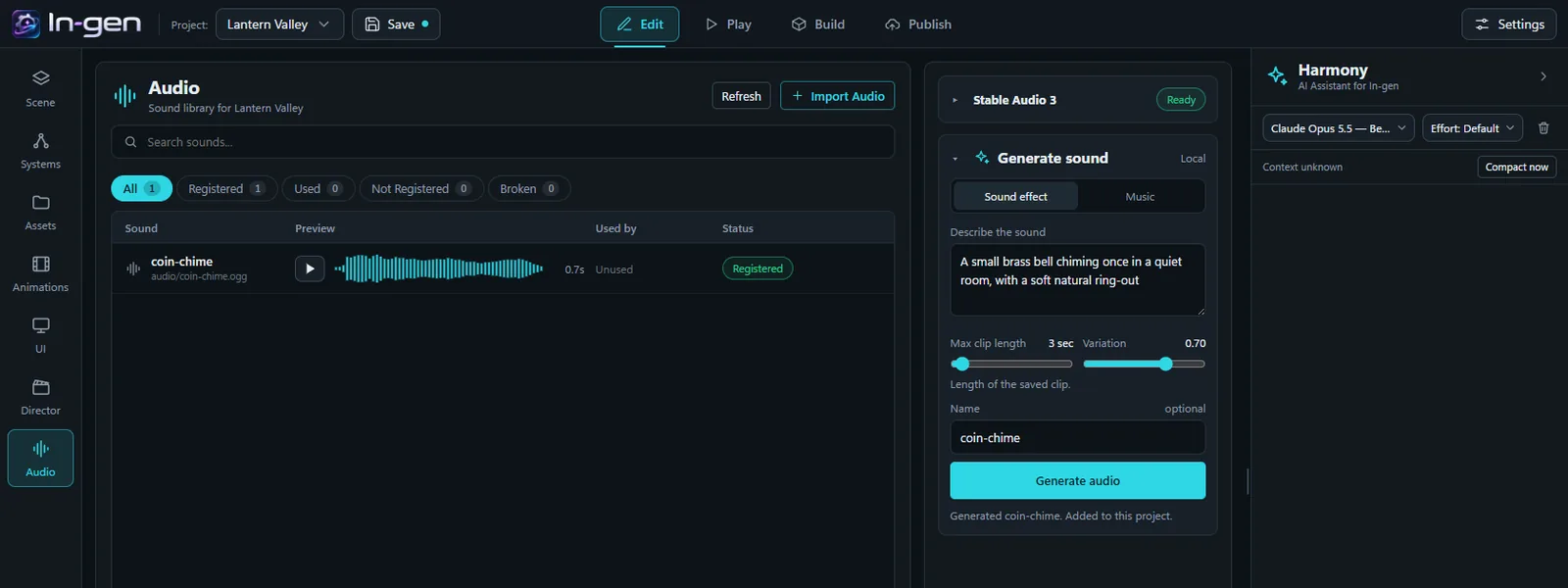
Audio is the project's sound library. It shows a waveform for each sound, what uses it, and whether it is registered. Import Audio adds files, and the Generate sound panel makes a sound effect or a piece of music on your own computer with Stable Audio 3, at no cost.
Your first request to Harmony
Type what you want in the box at the bottom of the Harmony panel and press Enter (Shift+Enter starts a new line). Good first requests are concrete and small:
- "Raise a ring of low hills around the edge of the map and put a small pond in the middle."
- "Plant about twenty oak and birch trees on the hills, in loose groups with clearings between them."
- "Make it late afternoon, with warm light coming in low from the west."
- "Add coins the player can pick up. Each gives 5 gold and comes back after 30 seconds."
- "Explain how the Main Player System works and which sheet controls the controls."
To point at something instead of describing it, select it in the viewport and press Attach Selection. The arrow beside that button can also target the center of the viewport or attach a picture of the current view. You can type while Harmony works: it reads your message at its next step and adjusts without starting over.
Harmony shows short progress notes as it goes and finishes with a report of what it changed and how it checked the result. For a large job, such as a whole game, it first writes a plan in the project's Design/ folder for you to approve, then works through it step by step. The Harmony docs explain the whole flow.
Review changes and undo
Each request becomes a task card above the conversation. While it runs you can Pause or Stop it. When it finishes, the card says "Please inspect the changes before saving." and offers these buttons:
- View Changes lists every change the task made, one line each.
- Inspect shows the task's details.
- Revert puts the task's changes back. It is offered for the 8 most recent tasks while In-gen still holds their checkpoint, and it stops rather than overwrite anything you changed yourself since.
For your own edits, Ctrl+Z undoes in the editor and in Sheets.
Approval cards. By default, Approve all agent actions is on: Harmony works without stopping, and each action is still logged in the chat. To approve actions one at a time, open Settings > API Keys and untick that box at the top of the panel. Harmony then shows a card before each action that changes your files, runs a command or spends credits. The card shows what will change, with a line-by-line diff, and offers Approve, Always allow this tool for the rest of the session, Approve all, or Deny.
Play your game
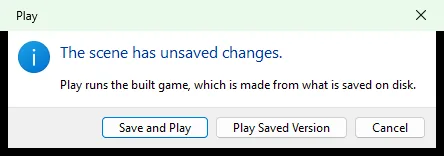
Press Play in the top bar. In-gen builds your saved project as a Windows game and runs it in its own window, so what you play is what you would ship. If the scene has unsaved changes, it asks whether to Save and Play or Play Saved Version. Press Stop to close the game.
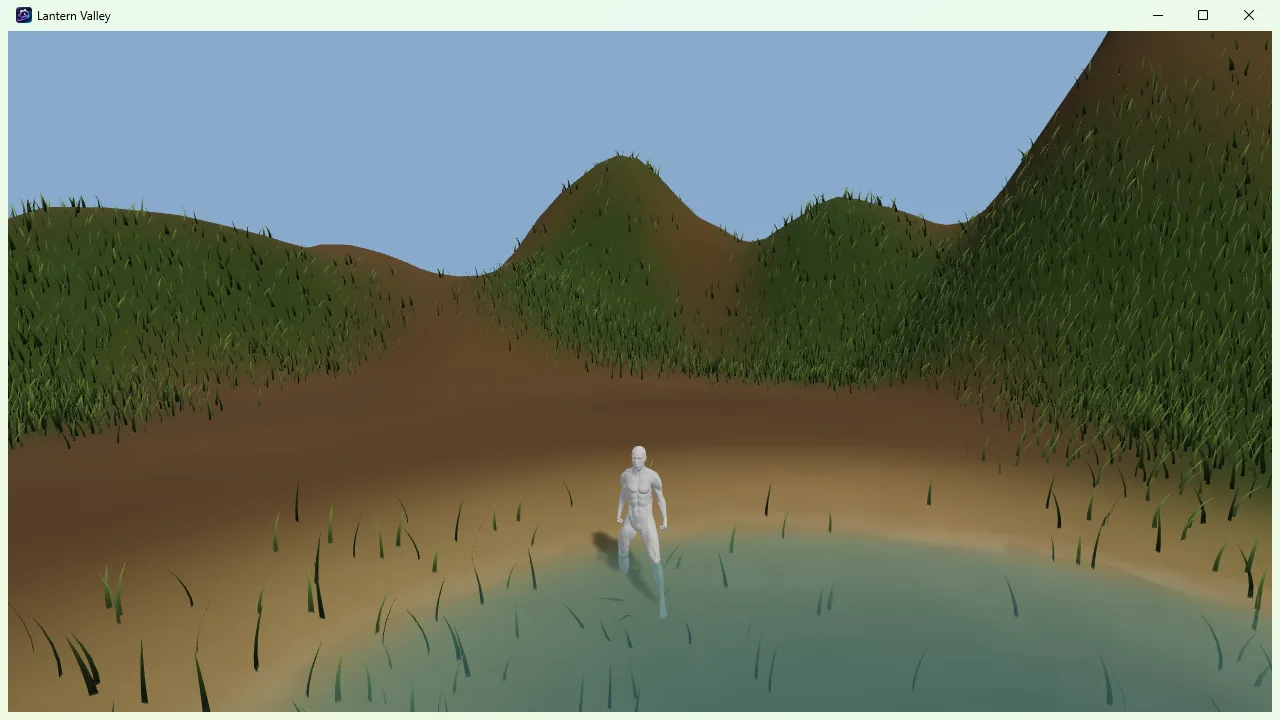
The starter character walks with W A S D, runs with Shift and jumps with Space. Those keys live in the Movement sheet, so you can rebind them there.
Watch Me Play, at the bottom of the Harmony panel, plays the game inside the editor and records what happens: the game's events, the player's state and about one frame a second, for up to five minutes. Press F8 to drop a mark at a moment that matters. When you stop, you can add a one-line note and press Ask Harmony, so Harmony can read the recording before it looks at a bug.
Tune a System yourself
When Harmony builds a mechanic, it puts the numbers in a Sheet rather than in code. Changing one of them needs no prompt and costs nothing:
- Open Systems on the left rail and choose the System, for example Coin Pickup. Its description says which sheet and columns tune it.
- Click its Sheet, for example Coins, and edit a cell. Columns are typed: Play refuses a value that does not fit and names the sheet, row and column.
- Press Save (Ctrl+S), then Play. The System reads the new value.
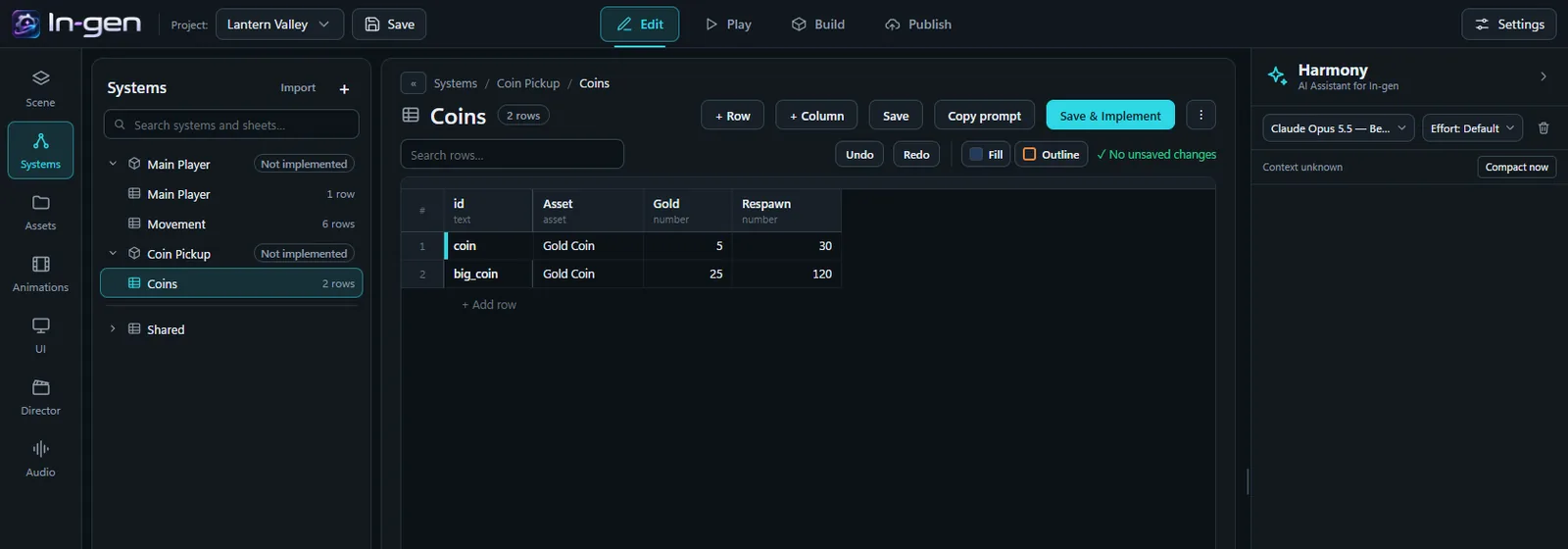
If your edit needs new behaviour rather than a new value, such as a row for a coin type the code does not know about yet, press Save & Implement. It saves the sheet and puts the edited rows in Harmony's box, ready to run. Copy prompt copies the same request for another agent instead.
Build and share your game
Build Game (the Build button, or File > Build Game…) makes a copy of your game that runs without In-gen. It always builds from what is saved on disk.
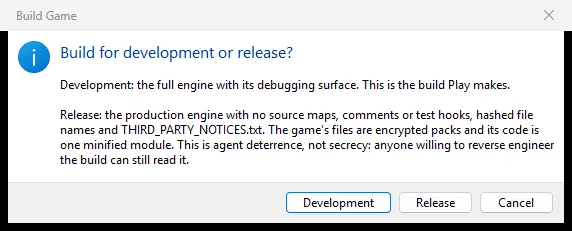
- Choose Development or Release. Development keeps the debugging tools. Release strips comments, source maps and test hooks, packs the game's files into encrypted packs and minifies its code. That deters casual copying, but it is not secrecy, so never put a password or key in a project.
- Choose Windows (.exe), Web (HTML) or Both. A checkbox builds for the other renderer, WebGL or WebGPU, for this build only.
- Choose a folder. In-gen suggests one beside the project.
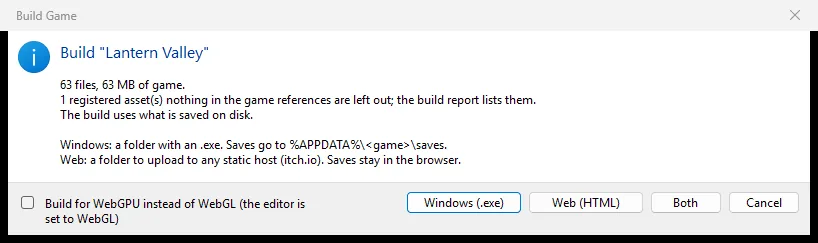
A Windows build is a folder with an .exe; its saves go to %APPDATA%\<game>\saves. The first release Windows build downloads the Electron runtime (about 144 MB) and checks it against Electron's published checksums. A web build is a folder you can upload to any static host, such as itch.io, and its saves stay in the player's browser. Models you registered but never used are left out, and the build report lists them. File > Play Release Build builds and runs the release version, so you can test exactly what you will ship.
Share Playtest (the Publish button, or File > Share Playtest…) builds the web version and puts it online so you can send someone a link:
- OpenAI Sites, through Codex: publishes to a chatgpt.site address with the Codex you already use.
- Vercel: deploys with the Vercel command line. It needs Node.js and signs in through your browser the first time.
- Another host: builds the web folder and walks you through uploading it to Netlify, itch.io or your own site.
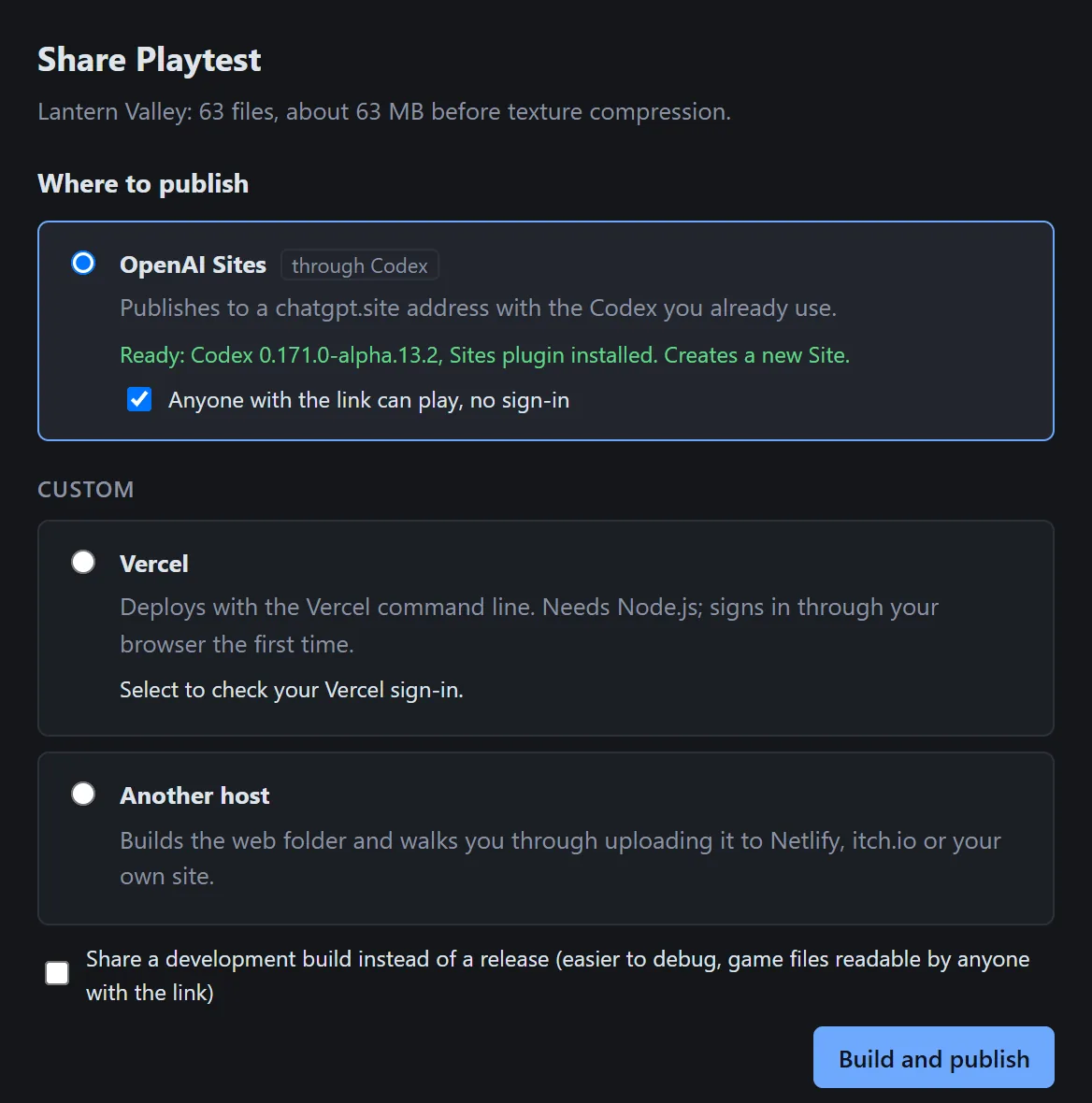
A shared playtest is a release build unless you tick the development option. Publishing to Gen Haven is not available yet; In-gen Publisher will add it later.
Troubleshooting and FAQ
- Windows says the installer is unrecognized.
- The installer is not code-signed yet. Choose More info, then Run anyway.
- Harmony says I am not signed in, or cannot find Claude Code.
- Run Agent > Set Up Agents… again and finish the sign-in. If Claude Code is missing, Agent > Check for Tool Updates… installs In-gen's own copy.
- My API key was not saved.
- If the provider rejects a key, In-gen does not save it. Check that you copied the whole key and that it is an API platform key, not a chat subscription login.
- I changed a sheet but the game did not change.
- Save the sheet, then Play again: Play uses the saved files. If the value is new to the code, use Save & Implement so Harmony can wire it in.
- The viewport is slow or blank.
- Try View > Reload Preview (Ctrl+R), or switch View > Preview Renderer between WebGL and WebGPU.
- Does In-gen cost money?
- In-gen is free. Your AI provider bills you under your own plan or API key, and optional services such as Meshy use your own account.
- Can I use the editor without an AI?
- Yes. Every panel works by hand. Harmony needs a connected provider.
- Harmony stopped and said In-gen cannot do something yet.
- In-gen shows a short report you can email to contactus@gengaming.net. In-gen does not send it for you.
Where to go next
Read the Harmony documentation to get more out of the agent: how requests flow, how Systems and Sheets work, what Harmony Intent is, and how to keep costs down. The latest release page lists what changed in each version.